
Photo and Video Backup Solutions
**This is NOT a sponsored post but does contain affiliate links (marked by each product) that earn me a small commission if you purchase through the link.There is no additional cost to you but it does give my small business a tiny boost!
If you had 2 minutes to leave your house, would you be secure in the knowledge that your photos are safe? World backup day is March 31, so now is a perfect time to ensure that your media is safe and secure.
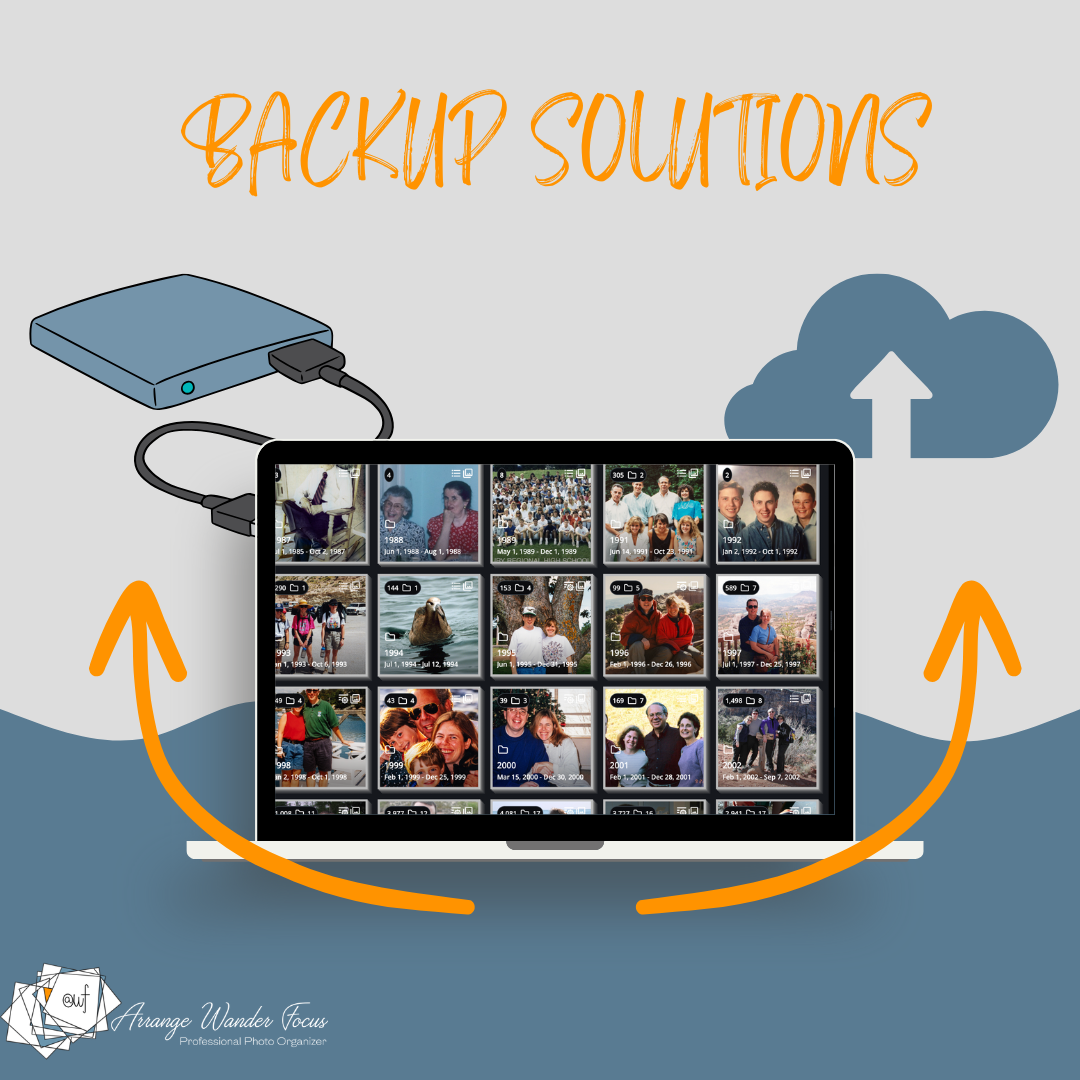
There is no real failsafe perfect backup - there is always that one in a million chance that all of your backups fail at once - but there are ways to be 99.99% secure. There are two parts to a secure and safe backup. The first is the standard 3 copies in multiple formats and multiple locations. The second is having a local copy that you can physically grab.
Why both? The 3 copies ensures that if one or even two of them fail or are lost, you still have the third copy. Read more about why the 3 copies are so important, and ways to achieve them, on my blogpost It’s Time to Backup Your Photos.
The local copy ensures that if your 3 copies are all web or specific software based, and that website or software goes out of business, you still have a copy no matter what. Software companies come and go, so I don’t trust ANY of them to be around forever. Because of that, I make sure that I always have a good old fashioned local folder-based copy of all of my media. I don’t use this as my primary access point, because the photo software databases add enormous value to organizing and finding your photos, but I keep this local copy on a drive in case of emergency. If I were to get the email tomorrow that my software program of choice were going out of business, I’d be sad and annoyed, but I would not panic as I know that I already have a local copy that is always up to date. Note that drives can also fail, so it’s good practice to have two local copies (yes, I’m always thinking of the worst case scenario!)
Below I discuss how to make a local copy if you use Apple Photos, Google Photos, FOREVER and Mylio Photos.
How to Make a Local Copy of Your Photos
A local copy of your photos means a set of all of your media on either your computer hard drive or an external hard drive. For most people, their computer has limited space, so an external drive is a better option. How often should you create this copy? That has to do with your risk tolerance and how many photos you take. For some people every six months or every year is fine, for others monthly may be a better option.
If you are an Apple Photos user
You have two options for creating a full local copy of your library:
Set your library to save originals to your Mac. This can be to your Mac directly or to an external drive. This is the easiest option as it automatically updates. But if you are saving to an external drive, it can only auto update if your drive is plugged in, so if it’s not always plugged in add a reminder to your phone to plug it in on a regular basis. If you don’t have enough space, you can …
Export your entire library on a regular basis to an external drive like one of these. You can use an app like Photos Takeout or Peakto Avalanche to export to date-based folders. Be aware that you will have a small percentage of photos export with incorrect dates. But this is a relatively painless way to make a backup. You can also request a copy of your library from privacy.apple.com. Set a reminder in your calendar to do this every 6 months or whatever period of time you are comfortable with.
If you are a Google Photos user
Use Google Takeout to periodically request a full copy of your entire media library, and save it to your computer or an external drive. Google will send you a link from which you can download. Set a reminder in your calendar to do this every 6 months or whatever period of time you are comfortable with.
If you are a FOREVER user
You can download your entire library periodically using FOREVER’s Valet (affiliate link) software. Set a reminder in your calendar to do this every 6 months or whatever period of time you are comfortable with.
If you are a Mylio Photos user
If you use Mylio Photos, and are set up properly, your photos are already backing up to an external drive or two or three. Just remember to plug in your drives on a regular basis. I always keep one external drive unplugged in case of a computer virus or other catastrophe and swap the drives in and out periodically. This automatic backup to an external drive, with my files organized the way I want into folders but with the benefits of a searchable database, is why I use Mylio Photos as my primary media storage option. To learn more about Mylio Photos and how I use it, check out this blog and my various webinars accessible here.
Make sure you are in control of your own media
Whatever method you choose, make sure that you have a copy independent of anyone else’s software. Stay in control of your own media.