
Metadata: Crucial to any Organized Photo Library
**This is NOT a sponsored post but does contain affiliate links (marked by each product) that earn me a small commission if you purchase through the link.There is no additional cost to you but it does give my small business a tiny boost!
This month let’s talk about metadata. What is it? Why do you need it? Why is it the secret to an organized media library? We had a great conversation about metadata on our podcast this month, so I thought I would dive in here as well.
Before we get to the “what”, let’s discuss the “why should you care?”.
If you’ve ever looked for anything in your photo library by searching, you are using metadata. Looking for a photo by date? You are using metadata. Looking for a photo by typing in “cat”? You are using metadata. Looking for a photo using facial recognition? You are using metadata.
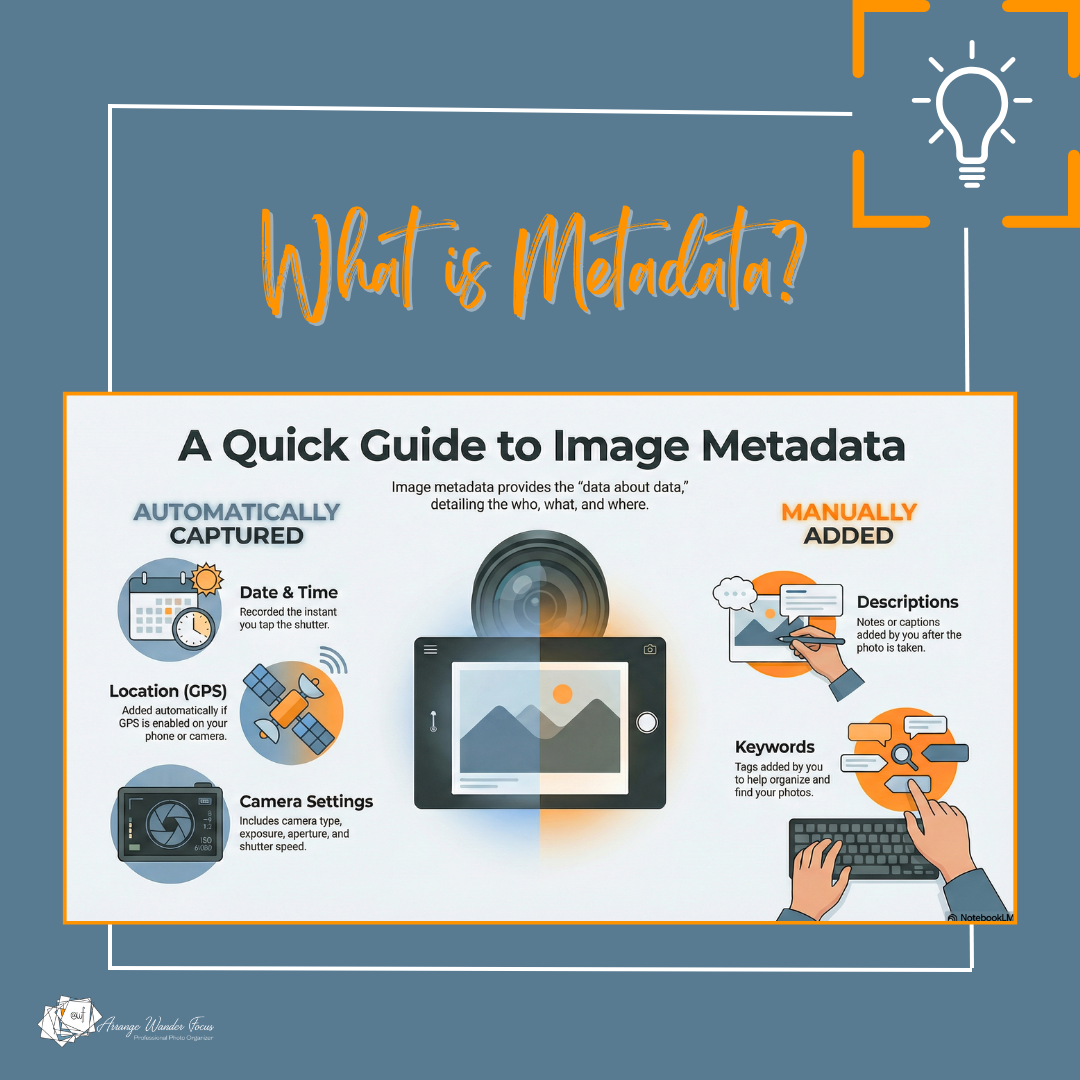
What is metadata?
Metadata is “data about data”. Clear as mud, right? What this means is that metadata is the who, what, where, about the photo. It is the basic information such as the size of a photo, what type of camera took the photo, and the camera settings used to take the photo (think which camera, the exposure, aperture, shutter speed, etc). While this information is useful for photographers, for the average person the more important aspects of metadata are:
Date and time: added the moment you tap the shutter.
Location: added the moment you tap the shutter IF you have GPS turned on on your device. All phones have this ability, some cameras have this ability. But with both you need to make sure it is on if you want to use it. You can also add location after the fact.
Descriptions: added by you after the fact.
Keywords: added by you after the fact.
How to harness the power of metdata to create a truly searchable photo library?
Guess what? You are already harnessing the power of metadata! Because some information such as date, time and location are automatically added to your photos and videos, your phone is already using this to help you find what you need, to curate memories, and to show you “on this day” snippets without you doing a thing.Those two bits alone - date and GPS - are very powerful aspects of metadata.
But once your camera roll starts reaching into the thousands, they may not be enough. The nature of photography today, always having a camera with us, can create large photo libraries that contain all sorts of things and not just your favorite photos. So often we need more than just the date and location to find what we need.
If you use a program that incorporates AI into it’s operating system, that can provide another level of organization. Programs like Apple Photos, Google Photos, Amazon Photos, Mylio Photos, and FOREVER, incorporate varying degrees of AI to help you find your photos - the software’s AI is reading the information in the photo. The more powerful photo software can find your sunsets in Costa Rica, a soccer tournament in Idaho, and all of your photos of dogs. BUT they are limited. None of these programs can find my son’s fencing (as in the sport) photos. Nor can they find my favorite photo of the Shoebill Stork we saw in Uganda.
What metadata gives you the most bang for your buck?
To REALLY make your library truly searchable, you likely need to add some metadata of your own. Which metadata depends a on your own collection and what you want to find in it. As mentioned above, digital photos generally already contain a date and time, and GPS if that is toggled on. From there facial recognition, descriptions and/or keywords (depending on what you are using to organize your photos) can add a ton of searchability. Most programs search descriptions (sometimes called captions) and keywords together so from that perspective it doesn’t matter which field you use. But I distinguish them this way:
Captions: tell the story, as if you are describing the scene.
Keywords: a more controlled list of vocabulary that can be added quickly as just one or two words, and can be added in batch.
For my examples above, my son’s fencing photos all have the keyword “fencing” and my bird photos all have a keyword with the type of bird. For fencing photos I may also add a caption to some, such as the tournament name or that he qualified for nationals on that day (proud mom moment there). That means I can search my library for “fencing” to find all of his fencing photos, and I can search my library for any particular bird and I’ll be able to find it. And if I’ve forgotten the name of a bird, they all have the keyword “bird” and the GPS so I can find it that way if I remember where I saw it. I generally remember where I saw all of my birds, so location is key for me.
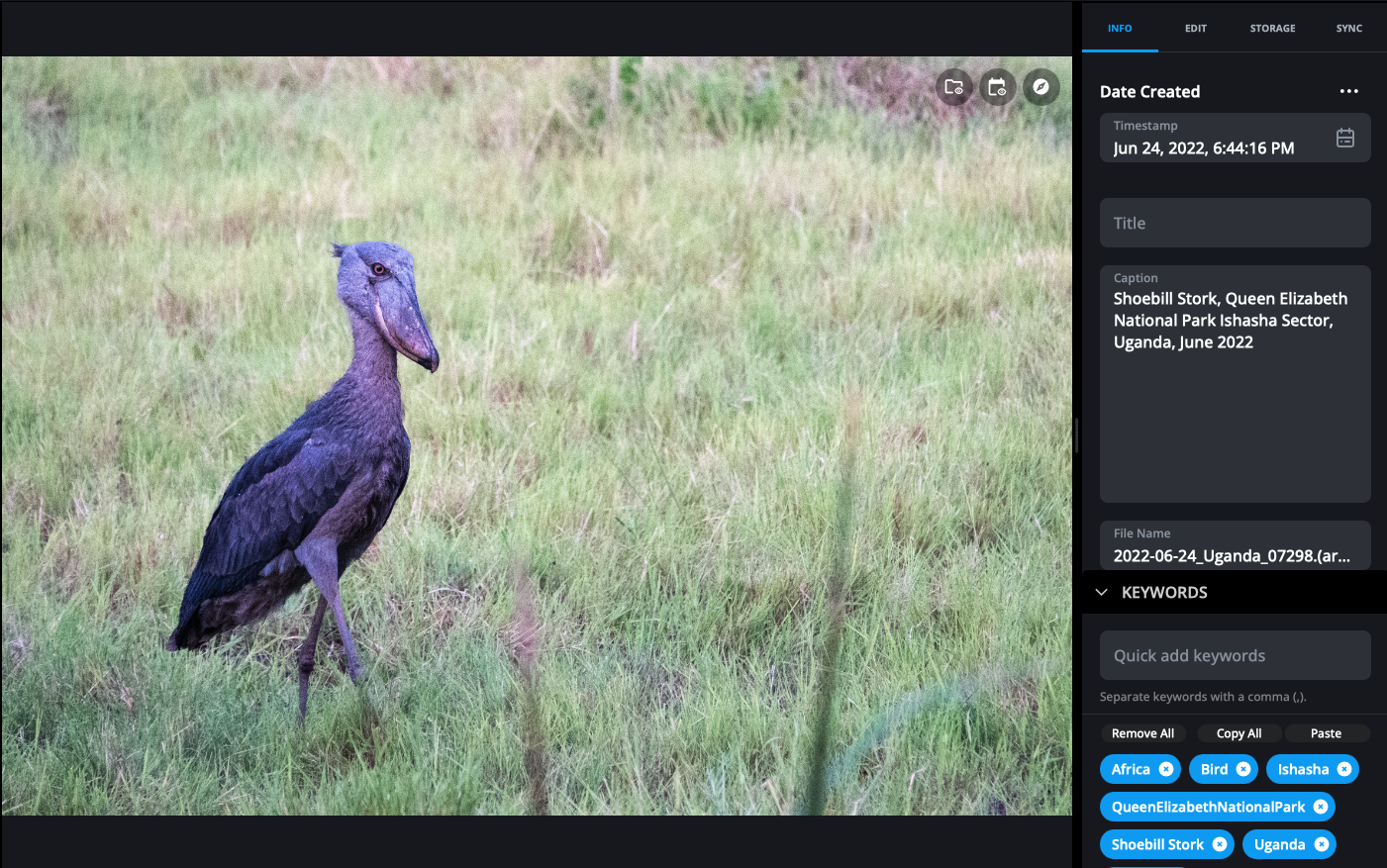
This particular photo has both a caption and keywords because I used it in a slideshow. In the slideshow, the caption shows on the bottom but the keywords do not. Normally I don’t add both. And, yes, this Shoebill Stork did look purple during the golden hour when we saw it!
The key is not to become overwhelmed. You do not need to add a description or keyword to every photo. Think about what you generally want to find and start there. Try some searches to see if your photo library can find the photos you want without you doing anything at all. Try searching “birthday” or “wedding” and see what comes up. Did you just come back from cousin Bobbie’s wedding? Add “Bobbie’s wedding” to the photos while you are cleaning them out (because you should clean them out!) Sometimes something just that simple will go a very long way to helping you find your photos.
If you find yourself scrolling and scrolling to find “that photo”, then you need to add a description or keyword to “that photo” because your photo program cannot find it on its own.
Using Facial Recognition
Another extremely powerful piece of metadata that can help you find your photos is facial recognition. Facial recognition allows you to batch tag your photos without having to add “Bobbie” to each and every one. Instead you can just identify Bobbie and let the program do the rest. I use facial recognition to find photos of my immediate family all together, to find photos of just my boys together, and to find photos of specific people. I use a combination of facial recognition and keywords to find photos of my kids with our dog.

One of my favorite searches in Mylio is my two boys together with no one else in the photo. They are a whole lot bigger than this now!
Privacy Considerations with Facial Recognition
With some programs facial recognition is processed on the software company’s server, with others it is done on your devices. This is an important distinction for privacy and security reasons, so think about your comfort level with identifying faces and who has access to that data. Apple and Mylio process faces entirely on your own devices, not in the cloud. Google Photos and Amazon Photos process faces in the cloud.
Tools for adding metadata
All photo organizing software handles metadata slightly differently, but here are some options for adding metadata.
Apple Photos: if you are an iPhone user, you can swipe up on a photo to add a description, and tap on the people and pets tab (found in “Collections”) to name people and pets. On your Mac you can do more, such as change the date and location. You cannot change filenames on either.
Mylio Photos (affiliate link): has a full metadata panel so you can add and change pretty much anything and everything including captions, keywords, facial recognition, GPS (if your photos don’t have it already), star ratings, and more. And you can do it in bulk. If you’d like to give it a try, tap the link and use the code ARRANGEWF for a 30 day free trial and 20% off your first year.
Adobe Bridge: if your photos are on a computer, you can use this free program to add descriptions and keywords in bulk, but not facial recognition. Adobe Lightroom is a similar but more powerful program that will give you more options but is probably more than the average user needs.
FOREVER (affiliate link): you can add descriptions, keywords (called tags) and facial recognition in bulk.
A word about Google Photos: you can add descriptions in Google, but beware that they do not “stick” to the photo so can’t be used if you download your photos out. And if you had added any metadata prior to uploading to Google you cannot search for it in Google.
A note about digitized photos and converted video
We are so used to digital photos these days that we tend to forget that if we scan a printed photo or take a photo of that photo with our phone, it will have all of the wrong metadata. It will have the date of scanning and not the actual date taken. It will have no camera information, and an incorrect location. If you have been scanning your analog photos and converting your old videos, this is not helpful!
If you are scanning them yourself or send to a box service, I highly recommend adjusting the dates with one of the programs above and adding facial recognition, captions and/or keywords to make this media just as searchable as your natively digital photos. If you work with a professional photo organizer such as Arrange Wander Focus, we will make those adjustments for you. If you would like to work with us on your analog and/or digital collection, reach out here.